

Access to Data
Power Platform ToolBox is transparent about what data it accesses — both for the application itself and for the individual tools you install. This page explains it all in plain language.
How ToolBox uses data
Power Platform ToolBox itself connects to a small number of external services to function. None of these involve your Power Platform data.
Tool Registry (Supabase) When you browse or install tools from the built-in tool store, the application fetches the list of available tools from a hosted registry. This is how you see what tools are available and download them. No personal data is sent — it is a read-only look-up.
Dataverse Connections When you add a connection to a Dataverse environment, the application communicates directly with that environment using your credentials. This data stays between your machine and your environment — it is not routed through any ToolBox-owned server.
Power Platform ToolBox does NOT collect, store, or sell your Power Platform data. Your Dataverse connections and their data remain private to you.
Error diagnostics and privacy
Power Platform ToolBox can send anonymous diagnostic information to Sentry to help the maintainers find and fix application errors. This is optional: no diagnostic events are sent unless you select Yes in the privacy prompt.
When enabled, diagnostics can include:
- An anonymous installation ID
- The installed ToolBox version
- Your operating system and CPU architecture
- Application warnings, errors, crash details, and the technical context needed to diagnose them
Before an event leaves the application, a privacy filter removes common personally identifiable or sensitive information from error messages and their associated context. This includes email addresses, IP addresses, file paths that contain user names, Dataverse environment URLs, GUIDs, credentials, authorization headers, passwords, secrets, and tokens. Sentry receives only the anonymous installation ID as user context.
Power Platform ToolBox does not intentionally include your Power Platform data or credentials in diagnostic events. The privacy filter is applied to every outbound Sentry event, including messages, exception details, tags, breadcrumbs, request data, and additional context.
You can change your choice at any time under Settings → Telemetry → Sentry Log Collection. Select No to stop future diagnostic events; previously collected events are not affected. A restart may be required for the new setting to apply fully.
What is this prompt?
Beyond the ToolBox application itself, individual tools you install may also need to reach out to websites. When that happens, Power Platform ToolBox will show you a prompt that looks like this:
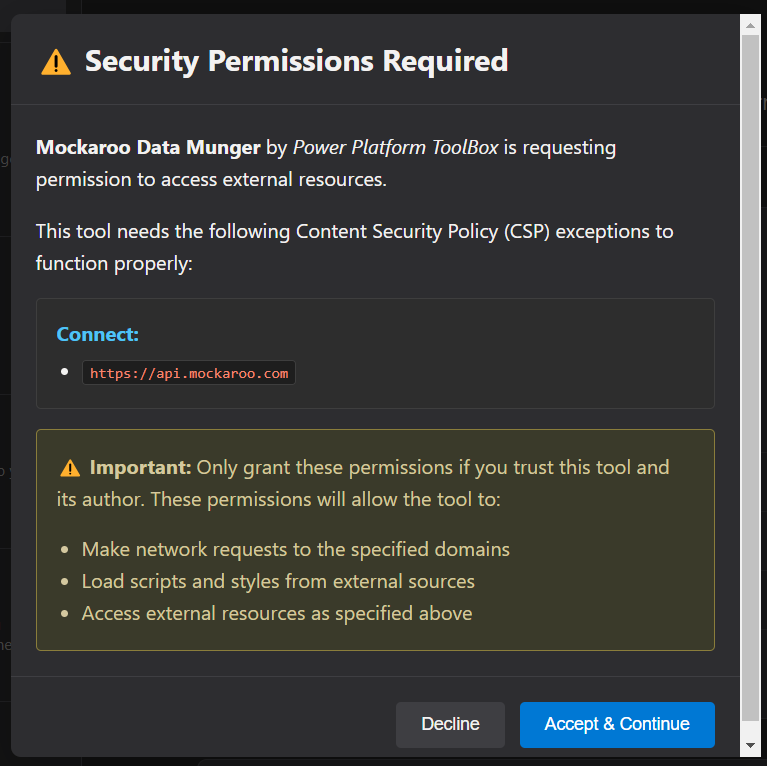
This is a safety check built into Power Platform ToolBox. The application is asking you to make a conscious decision before a tool is allowed to talk to the outside world.
Why does it appear?
By default, all access to external websites and resources is blocked for every tool. Tools run in a fully isolated environment and cannot reach anything outside the application unless you explicitly grant permission. This keeps things safe and predictable.
Some tools genuinely need to go further. A tool might need to:
- Pull live data from an external service or API
- Load images, icons, or other content from a website
- Save or sync information with a cloud service
- Connect to an internal system on your company network
When a tool was built to do any of these things, it declares the websites it needs access to. Power Platform ToolBox then shows you this prompt so that you are always in control of what gets connected.
The app also checks these permissions every time a tool launches. If a tool update adds access to new websites, the prompt appears again and highlights only the new permissions. Websites you previously approved are included as read-only context.
Should I allow it?
Ask yourself two questions before clicking Allow:
1. Do I trust the tool? Only install tools from sources you recognise and trust. If you are unsure where a tool came from, do not allow access.
2. Do the listed websites make sense for what this tool does? A tool that helps you manage Dataverse records should probably only need to connect to Microsoft or Dynamics URLs. If the websites listed seem unrelated to the tool's purpose, that is worth questioning.
What happens if I allow it?
The tool is granted permission to communicate with only the specific websites that were listed in the prompt — nothing more. It can:
- Download data or content from those websites
- Send information to those websites
- Load resources (like images or scripts) from those websites
It cannot suddenly access other websites that were not listed. The list is fixed by the tool's author and cannot be changed at runtime.
What happens if I deny it?
The tool will not launch. Website access is required for the tool to run, so denying it prevents the tool from starting entirely.
If this prompt was triggered because a tool update added new permissions, denying them leaves your previous consent unchanged and cancels this launch.
If you want to use the tool, you will need to allow access when prompted. If you are unsure whether the listed websites are safe, check the tool's documentation or reach out to its author before proceeding.
Not all tools require website access. Many tools work entirely within Power Platform ToolBox and will never show this prompt.