
Quick Start
Get up and running with Power Platform ToolBox in just a few minutes. This guide covers installation, connecting to your Power Platform environment, and installing your first tool.
Step 1: Download and Install based on your operating system:
Windows - Download the .exe installer - Run the installer and follow
prompts - Launch from Start Menu or Desktop
macOS - Download the .dmg disk image - Open and drag to Applications -
Launch from Applications folder
Linux - Download the .AppImage file - Make it executable: chmod +x *.AppImage - Run the AppImage
⚠️ macOS Users: If you see a 'damaged' or 'unidentified developer' warning
after installation, run the following command in Terminal: bash xattr -cr "/Applications/Power Platform ToolBox.app"
Power Platform ToolBox requires Node.js 18+ for tool execution. It will be automatically detected or you can configure the path in Settings.
Step 2: Connect to Power Platform
Power Platform ToolBox supports multiple authentication methods, the simplest being interactive login. Follow the steps below to set up your first connection.
Interactive Login (Recommended)
- Open the Connections panel
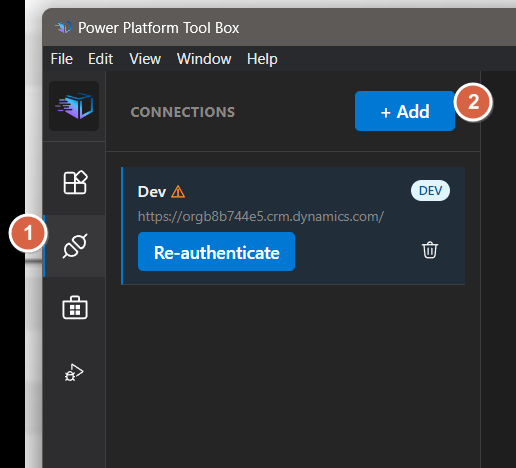
- Click "Add Connection" in the Connections panel
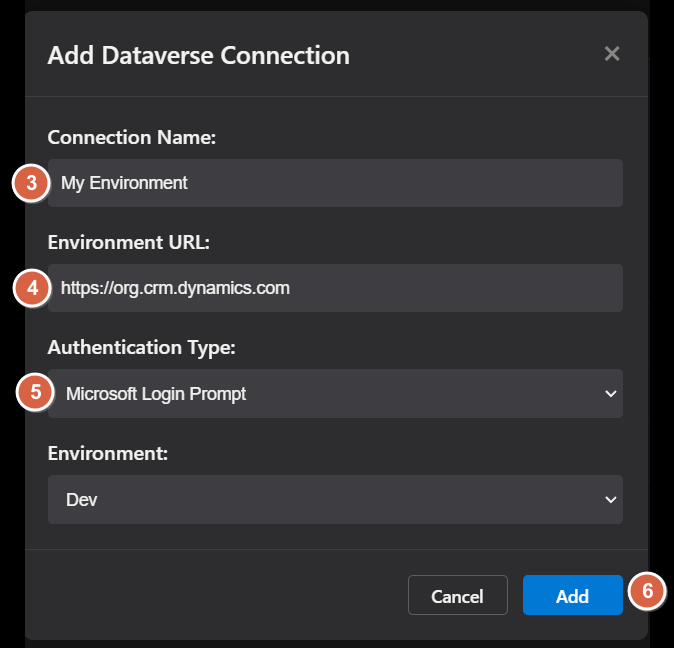
- Give your connection a name in Connection Name
- Enter your Environment URL (e.g.
https://org.crm.dynamics.com) - Ensure Authentication Type is set to Microsoft Login Prompt
- Click Add
- A browser window opens for Microsoft authentication
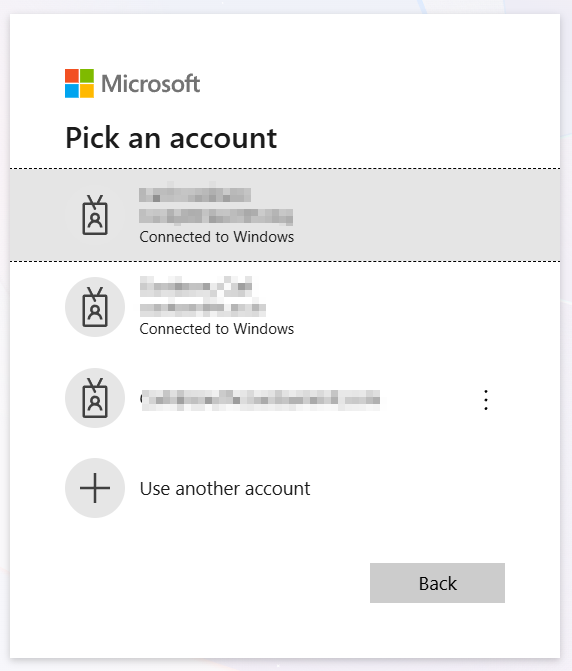
- Sign in with your credentials (MFA supported)
- Grant consent when prompted.
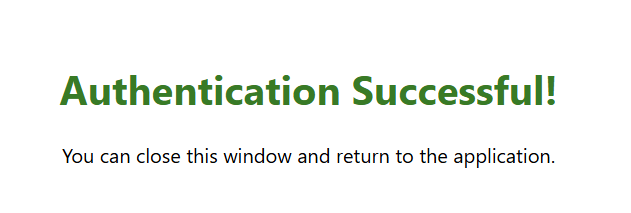
- An Authentication Successful message appears in the browser.
- Your connection is saved securely and is ready for use.
- You can manage your connections in the Connections Panel, including deletion.
Further authentication methods are documented in the Authentication Guide.
Step 3: Install Your First Tool
Browse and install tools from the marketplace:
- Click "Tool Marketplace" in the sidebar
- Browse available tools or search by name
- Click on a tool to view details
- Click "Install" to download and install
- Tool appears in the "Tools" panel
- Click the tool to launch it in the workspace
Tools are downloaded from the PPTB registry as pre-built packages. No npm/pnpm required on your machine!
What's Next?
Great! You're now set up with Power Platform ToolBox and ready to be more productive. Here are some recommended next steps:
For Users
- Explore the tool marketplace for tools that match your needs
- Configure settings (theme, auto-updates, terminal preferences)
- Add multiple connections for different environments
- Learn about security features and encrypted storage
For Tool Developers
- Learn how to build your own tools using the ToolBox API
- Review the package manifest for required fields
- Understand the Dataverse API for querying data
- Publish your tools to npm and submit to the registry
- Check out example tools for inspiration
For Contributors
- Set up the development environment
- Understand the application architecture
- Learn the contribution workflow and PR requirements
- Find issues to work on or propose new features